
- DigiHUD Speedometer
- 4.4
Advertisement
Advertisement
Screenshots
Download
Advertisement
App Information
System compatibility
The application is available on multiple platforms and is designed to function across a range of devices.
- Supported operating systems: Android / iOS
- Installation size may vary by version
- Performance may depend on device specifications
Permissions and data access
The app may request access to storage or notifications depending on your device. Each permission is optional and only used to support core features.
Latest updates
Release notes usually include stability improvements, bug fixes, and compatibility changes for newer Android and iOS versions.
FAQ
How do I install this app after downloading it?
Open the downloaded file on your device and follow the system prompts. Make sure installation from your selected source is allowed if your device asks for confirmation.
Is this app safe to use?
The application is available on multiple platforms and is designed to function across a range of devices.
- Supported operating systems: Android / iOS
- Installation size may vary by version
- Performance may depend on device specifications
Is this app free to download?
Download availability depends on the version and the store listing. Some regions may offer a free version while others may include in-app purchases.
How do I find my account back?
Use the sign-in recovery option inside the app or on the service website. Recovering with your email, phone number, or linked account is usually the fastest path.
How to use this app?
Start from the home page, sign in if needed, then follow the primary navigation to access the app's core features. Most settings and support options are available from the profile area.











Introduction to - DigiHUD Speedometer
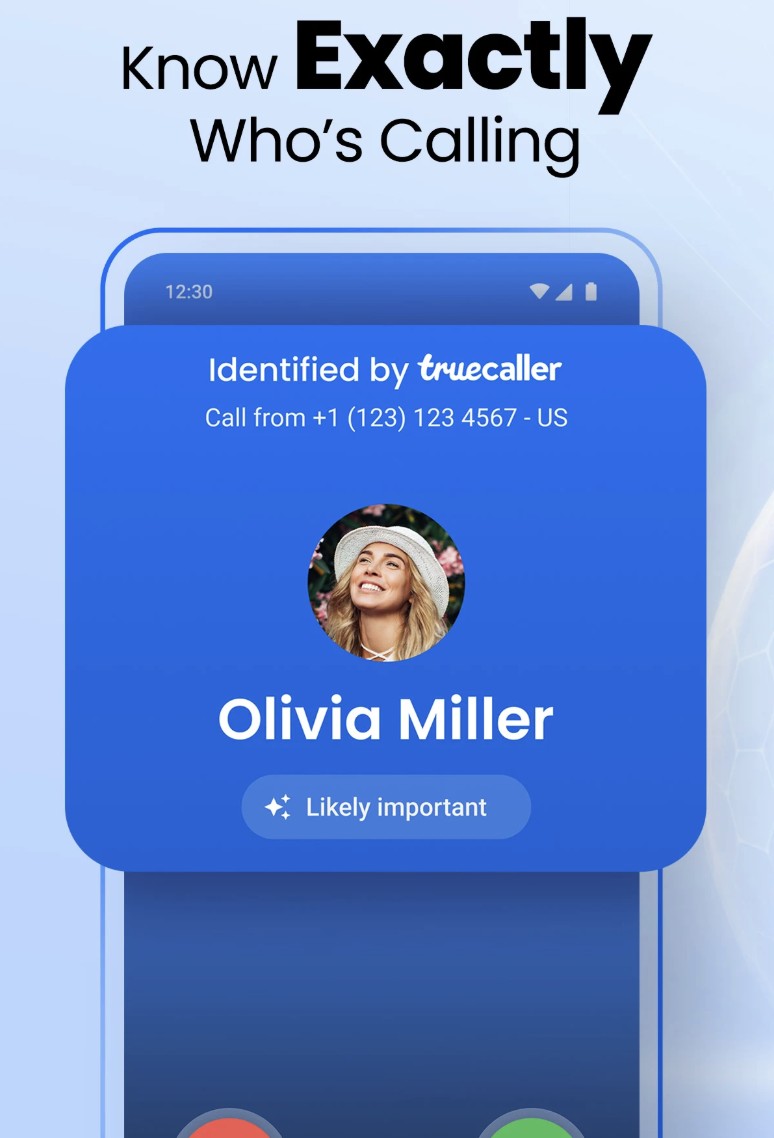
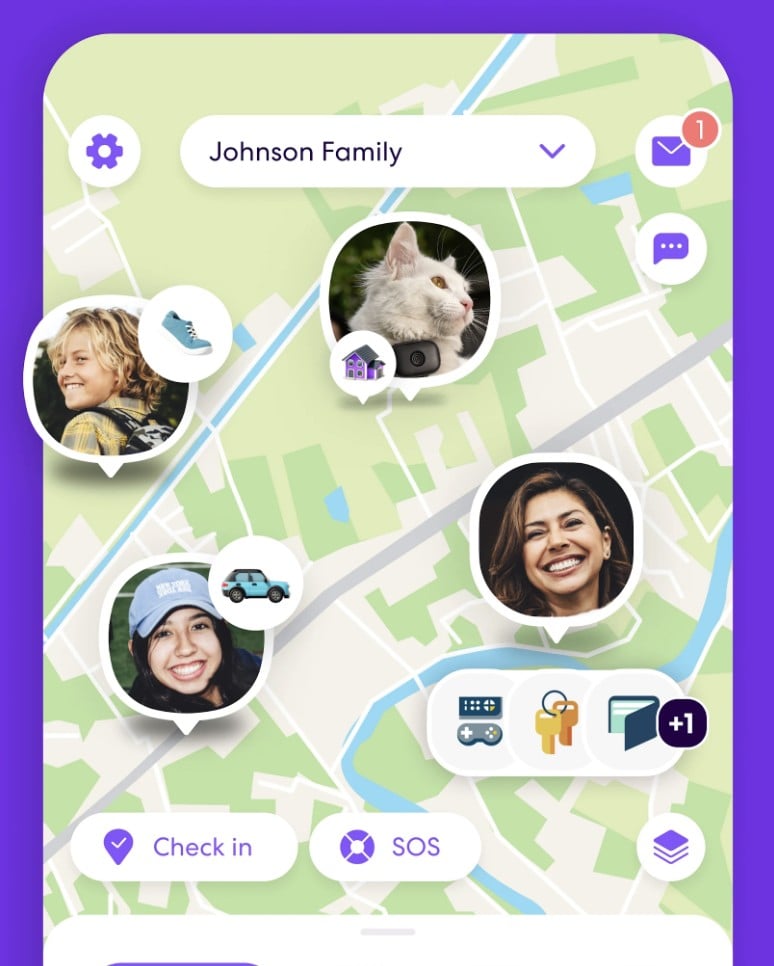
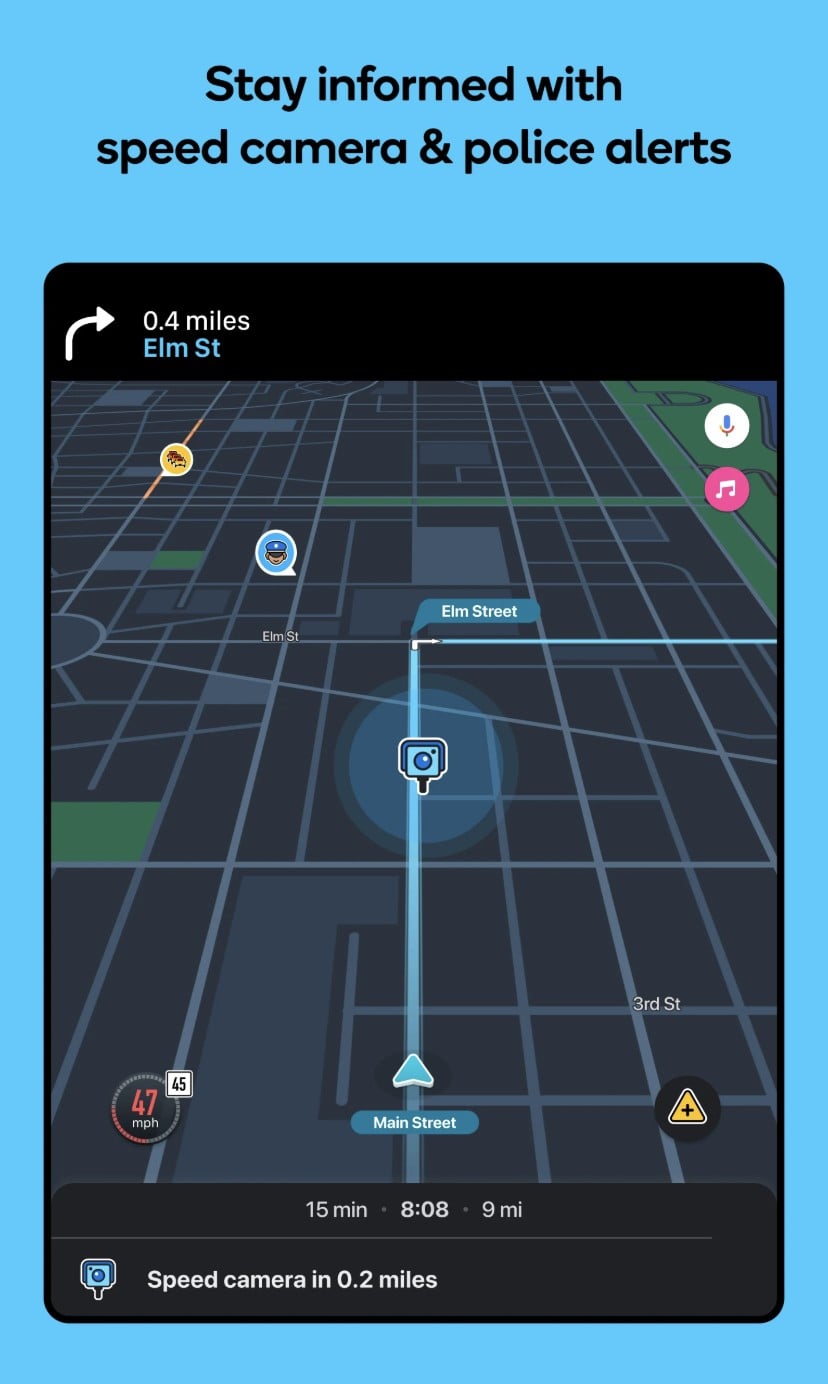
DigiHUD Speedometer is a free display that records the speed and distance information of your journey. Users can see the speed in two modes, one is the normal viewing mode, the other one is the HUD mode that users can view the speed in the vehicle windscreen.The Information displayed on the DigiHUD Speedometer are current speed, average speed, maximum speed, trip distance, direction, odometer, current time and battery power level. The GPS receiver will be used in this application. So it makes the usage of the battery more. During your trip the screen won't turn off and will work in the landscape mode. Download it and enjoy your journey now! DigiHUD Speedometer display:
♥ Current speed & time
♥ Average speed
♥ Maximum speed
♥ Three Trip distance counters
♥ Compass & Odometer
♥ Battery level indicator
♥ Satellite lock status icon
Using DigiHUD
Lite mode (speed only) - swipe left or right for speed. Swipe again to return
HUD Mode (Mirror) - Swipe up or down for speed. Swipe again to return
Touch the trip counter to cycle through the three counters
Long press the speed or trip value to reset it
Long press on the speed unit to select MPH, KMH and KTS from the pop-up menu (also in the main menu))
In windowed mode, touch the DigiHUD icon to access the menu to switch to the full screen application or to exit. The window can be resized by dragging the handle in the corner.
All values can be reset by pressing and holding "Pause to reset" (odometer readings in the stats pop-up window will not be reset, and the total distance since the application was installed or its data cleared will not be calculated).
By opening the menu by touching the speed displayed in the center of the screen, you can.
Exit DigiHUD
Window/Background mode: closes and opens as a resizable floating window
HUD view / normal view: switch the display between HUD (mirror) and normal
Speed units: toggle between MPH, KMH or KTS
Set warning speed/sound: the digital color will change to red for speed. Sound alerts can also be enabled here
Brightness: adjust the screen brightness
Display color: Choose from 10 customizable colors. Almost all colors are available except black
Lock screen rotation: the screen remains currently rotated even if the device is rotated
Display preferences: enable/disable screen elements
Statistics: odometer, distance traveled, top speed as well as average speed and version number
Help: Displays help and other information
* This application requires the use of a GPS receiver, which may increase battery usage. *